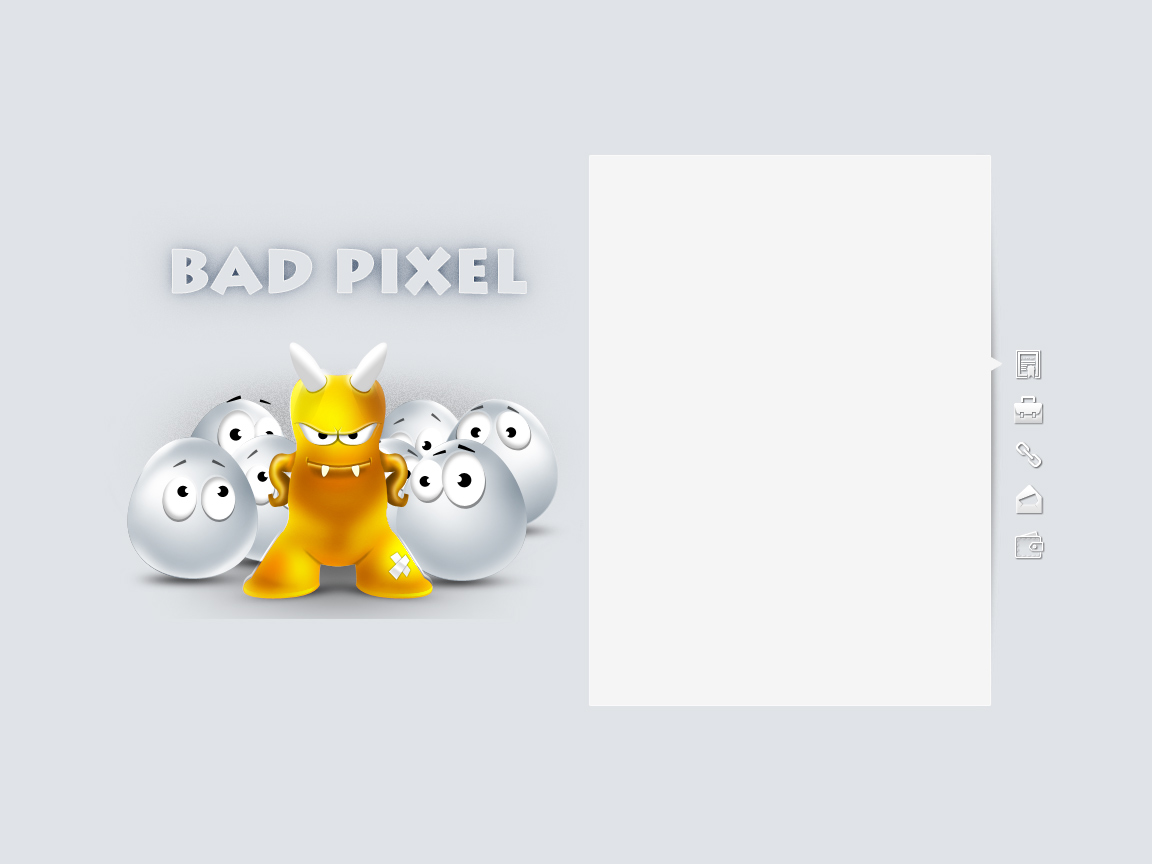
The vCard is a name for electronic business cards. In past a vCard was often attached to the e-mail messages. Today, is more better known like a minimal web presence or portfolio for freelancers, artists, or small business. In this Adobe Photoshop tutorial you will learn to create a minimal yet creative vCard for your portfolio. Time to completion: ~ one hour. Level: basic.

Step 1
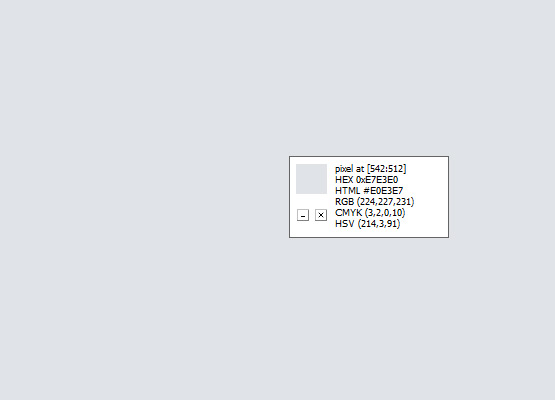
Create a new document from Photoshop layout web presets (1152px x 864px) and use a solid color for background: #e0e3e7
Step 2
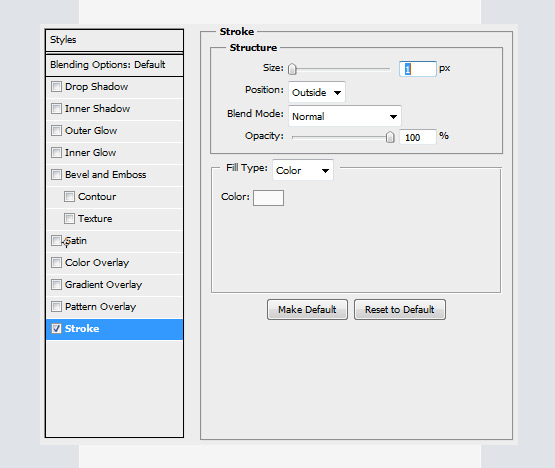
Using the “Rectangle Tool” (U) create the content container with 400px wide and 550px height dimensions. Use #f5f5f5 color for container background color. Apply to the layer a white 1px stroke effect.

Step 3
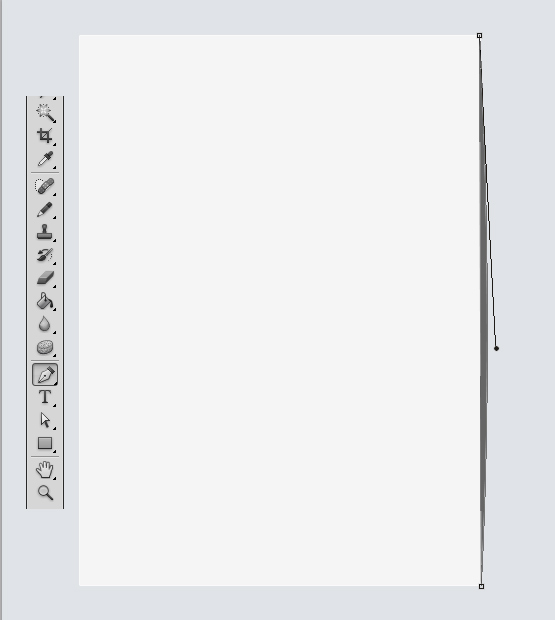
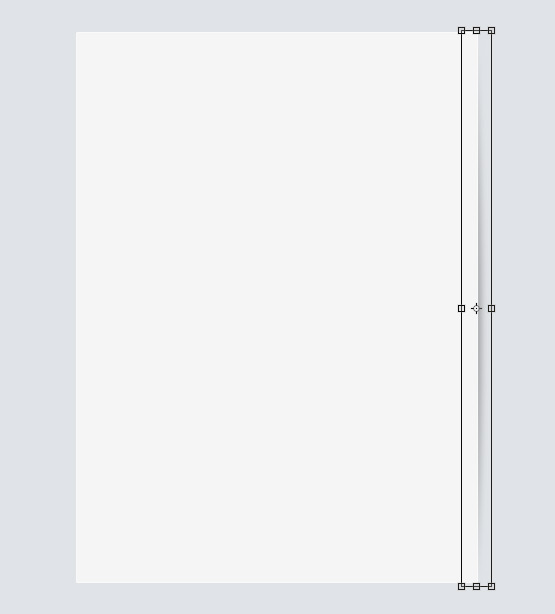
Let’s make a right shadow to the content container block. Select the “Pen Tool” (P) and draw a shape with a #666666 color like in the following screenshot.
Step 4
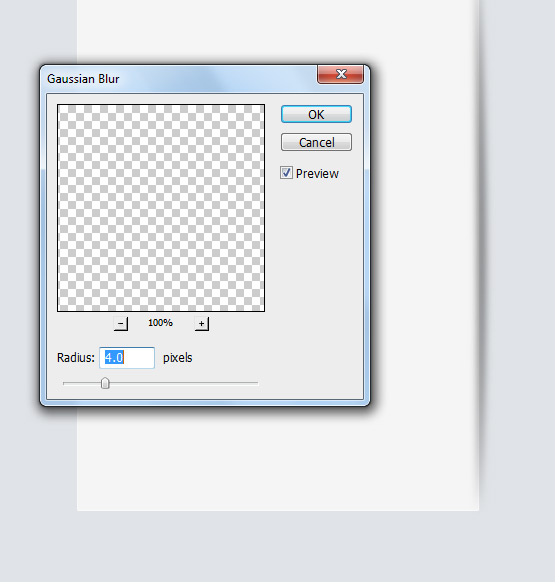
Select the shape and apply a 4px radius Gaussian Blur effect. (Filter / Blur / Gaussian Blur). Move the shadow behind the content container block. According to your taste, move the shadow to the left side of your screen to have a more discrete shadow. Also, you can touch and the opacity settings.
Step 5
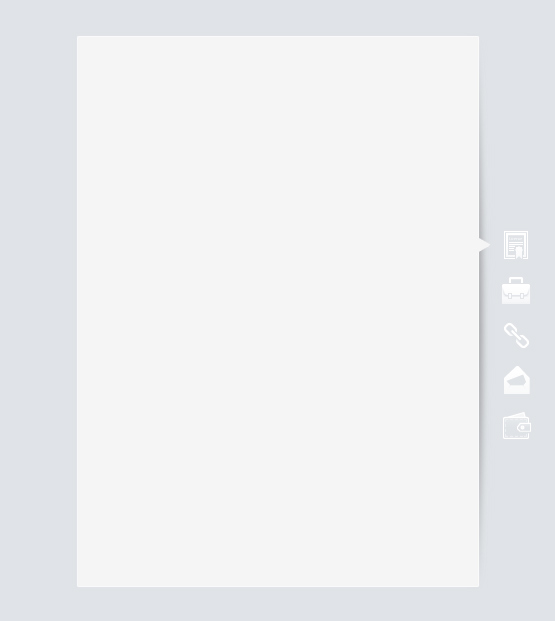
On the right side of the vCard content will be placed an icon menu. First of all draw an arrow (triangle) with #f5f5f5 color like in screenshot. You need to move it 1px more inside to cover the container white stroke. Select what icons feet your vCard profile.
Step 6
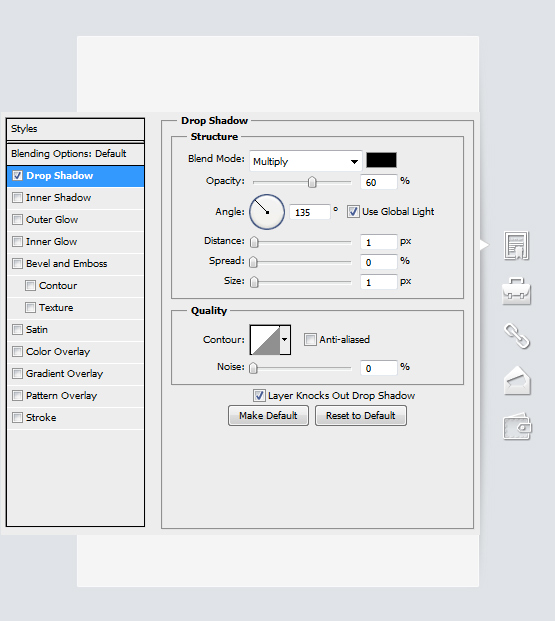
Apply the following effect to the menu icons.
Step 7
On left of the layout we have plenty room to place a creative image to spice the website. For a “bad pixel” theme i used Monsters vs Smiles – Super Creation Kit. This unique pack of freaky, 3D looking monsters and smiles is 100% vector layers based and you can use it for web & print advertisements, stickers, avatars, t-shirts, etc.


Step 8
We need a title. Above the bad pixel image write your vCard title or slogan. For this tutorial i used “Lithos Pro” font. You need a strong and heavy font because later will add effects what look ok just on this style of fonts.

Select the font layer and set the Fill setting to 0. Apply the following blending options:
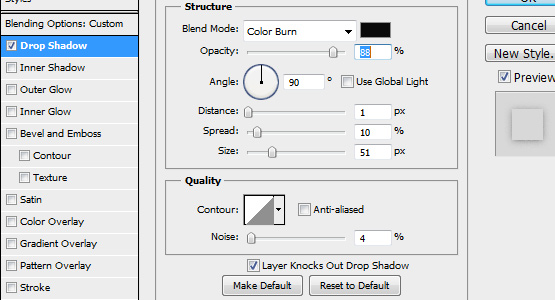
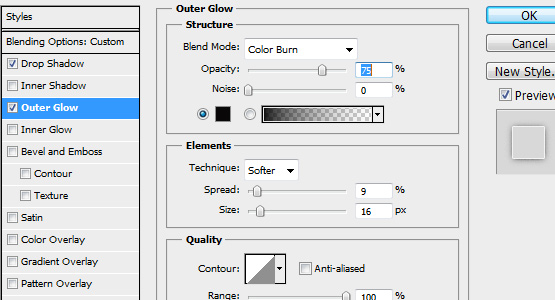
Apply a stroke effect with 1px and #f3f3f3 color. Here’s the result:

You can save your time purchasing (4$) this Adobe Photoshop text style. With one click you can apply this effect to any text layer. The package contain 3 different styles with a semi realistic graffiti effect.
Step 9
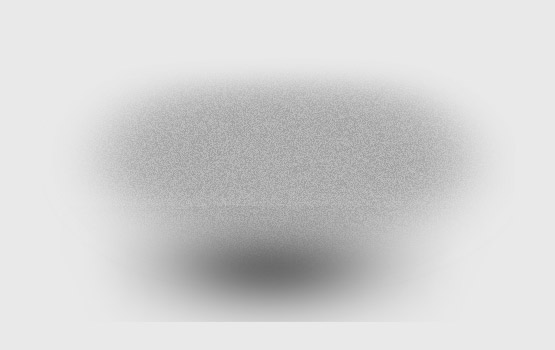
make a new layer and place it behind the characters. Using “Brush Tool” (B) apply with soft round pressed opacity a shadow for the characters group and apply a noise effect. Course, you need to apply some opacity and noise for the floor shadow and different for the wall one. At final, delete the bottom of shadow.
The final result