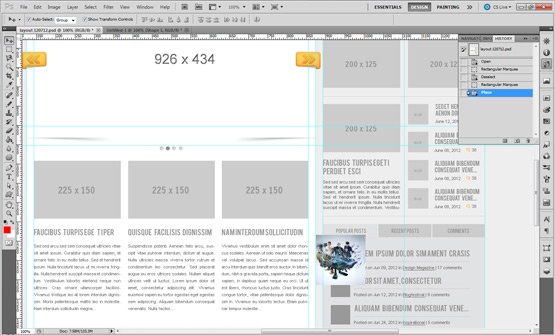
When you are using the Adobe Photoshop to design something large, and is need to insert a footage or stock images, a headache is to move them after insertion into the right place. Instead to move them with the mouse or arrows to the correct place, losing time to scale the layout and speed up the moving process, you can follow the following quick tip.
Step 1
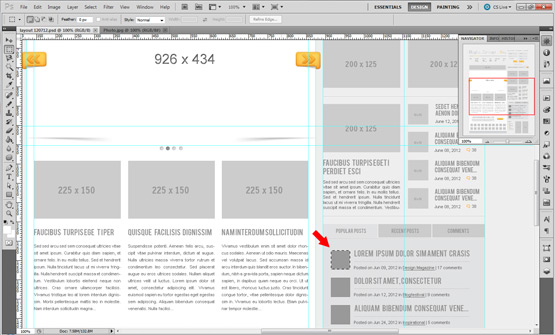
Using the Rectangular Marquee Tool (M) make your wanted selection where do you want to plate the image. In case you need to be accurate, right click on selection and chose “Transform selection”.
Step 2
Select the image from your folder and drag it into Photoshop layout. Release the mouse anywhere. The image is placed with the center of your selection.